Docs
Build your website with your own AI
iExtreme360 connects to Claude, ChatGPT and Gemini. Tell your AI what you want in plain words; it designs and edits your website, shows you a preview, and publishes it when you say so. iExtreme360 hosts the site and keeps it running.
How it works
- Connect once. Add iExtreme360 to your AI app and sign in with your iExtreme360 email.
- Ask for what you want. Your AI reads your site and makes the changes itself. You never touch files or code.
- Check the preview. Every change goes to a private preview first. Your live website stays as it is.
- Say "publish". When the preview looks right, your AI makes it live.
Before you start
- A iExtreme360 account and website. Sign up: building and previewing are free, no card needed. Publishing needs a plan.
- An AI app: Claude, ChatGPT or Gemini, on the web or the desktop app. ChatGPT needs a paid plan to add connectors.
- This connector address, which every app uses:
Connect Claude
Add to ClaudeThe button opens Claude with iExtreme360 filled in. Check it, click Add, then Connect and sign in. To add it by hand instead:
- In Claude, open Settings → Connectors → Add custom connector.
- Name it iExtreme360 and paste the connector address.
- Click Connect and sign in with the email you use for iExtreme360.
On a Claude Team or Enterprise plan, an owner adds the connector for everyone first (Admin settings → Connectors).
Connect ChatGPT
-
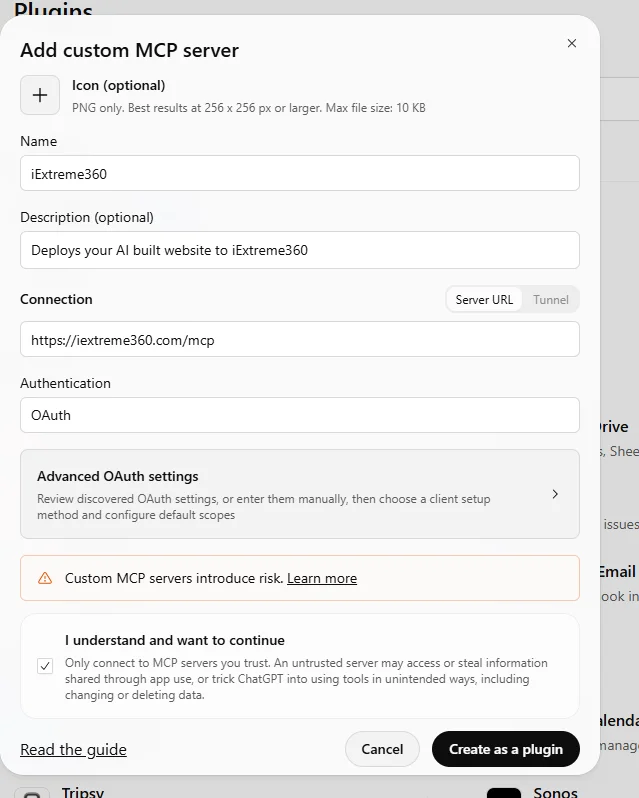
Go to chatgpt.com/plugins, click Add and choose Add custom MCP server.

-
Name it iExtreme360, paste the address under Connection, choose OAuth, tick I understand and want to continue and click Create as a plugin.
- Click Connect iExtreme360, sign in with your iExtreme360 email and click Authorize.
- In a new chat, type @ and choose iExtreme360.
Connect Gemini
- On gemini.google.com, click Switch to Spark, open Connected apps and choose to connect an MCP server.
- Paste the connector address and click Next. Leave Client ID and Client secret empty.
- Agree on Google's screen, sign in with your iExtreme360 email and click Connect.
Signed in to several Google accounts? Connect from a browser signed in to only the one you use Gemini with.
What to ask
Talk to your AI the way you'd talk to a web designer. Some places to start:
- "Tell me about my website and what we can change."
- "Here is my old website: yourbusiness.com. Bring over our words and photos and design a new home page."
- "Change the headline on my home page to 'Fresh bread every morning in Austin'."
- "Add a quote request form that emails me."
- "Make a share image for Facebook."
- "Turn on the Christmas theme for December."
- "That looks good, publish it."
- "Go back to how the site looked yesterday."
Your AI uses your own words and photos, and doesn't make up facts about your business such as prices, hours or reviews.
What your AI can do
- Look at your site
- Read your pages and files, check whether the preview has finished building, show the change history, and list your forms and the messages people sent through them.
- Change the draft
- Write and edit pages, add and update forms, make images such as share pictures and banners, copy in words and photos from your old website, shrink heavy photos, and try seasonal themes on the preview.
- Undo
- Save a restore point before a big change, go back to any earlier version, or throw away the changes since you last published.
- Publish
- Make the draft your live website. Your AI only does this when you ask it to.
Everything except publishing happens on the draft, so nothing reaches your live website until you say so.
Access and disconnecting
Your AI works with your access: it can change the websites you're allowed to edit in iExtreme360, and nothing else. When you connect, our sign-in page shows which app is asking. Only approve a connection you started yourself.
To disconnect, open Connect your AI → Connected apps in your iExtreme360 account and remove the app, or remove iExtreme360 in the app's own settings.
Troubleshooting
My AI says it can't see my website
Check that iExtreme360 is switched on for the chat: in Claude, the tools menu under the message box; in ChatGPT, type @ and choose iExtreme360. If you just signed up, wait a minute while your site is set up.
The sign-in page says I can't connect
Sign in with the same email you use for iExtreme360. If someone else owns the website, they need to give you access first.
The preview didn't change
Ask your AI to check the preview again: changes take a minute to build. If the build failed, your AI reads the problem and fixes it.
My change is on the preview but not on my website
Changes stay on the preview until you say "publish".
Still stuck? Email [email protected] or see Support. Also see our privacy policy and terms.